You can customise your Dashboard view by applying filters and adjusting the layout to focus on the data most relevant to your sales and marketing goals.
To filter your Dashboard view:
-
Click on “All Filters” at the top of the Dashboard
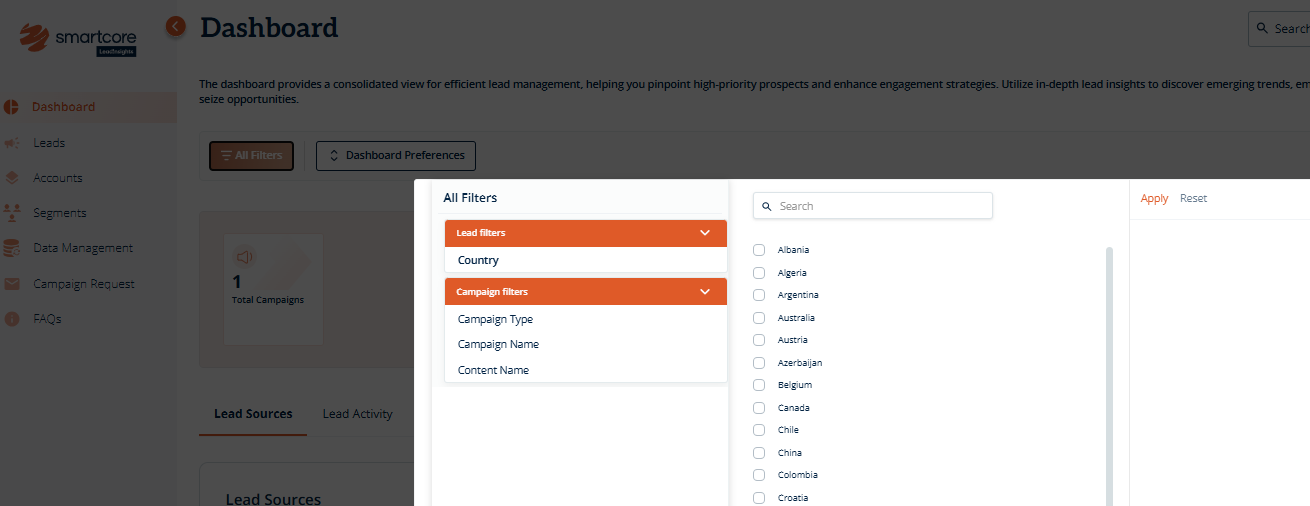
- Select the event, country, or lead name data points you want to filter by
- Click “Apply” to refresh the Dashboard with the updated, filtered data
- Click “Reset Filters” to return to the full dataset view
All applied filters are reflected across Dashboard visuals, metrics, and exports, allowing for a fully personalised experience.
To customise the Dashboard layout:
-
Click on the “Dashboard Preferences” button and pick which sections of the Dashboard you would like to hide or include
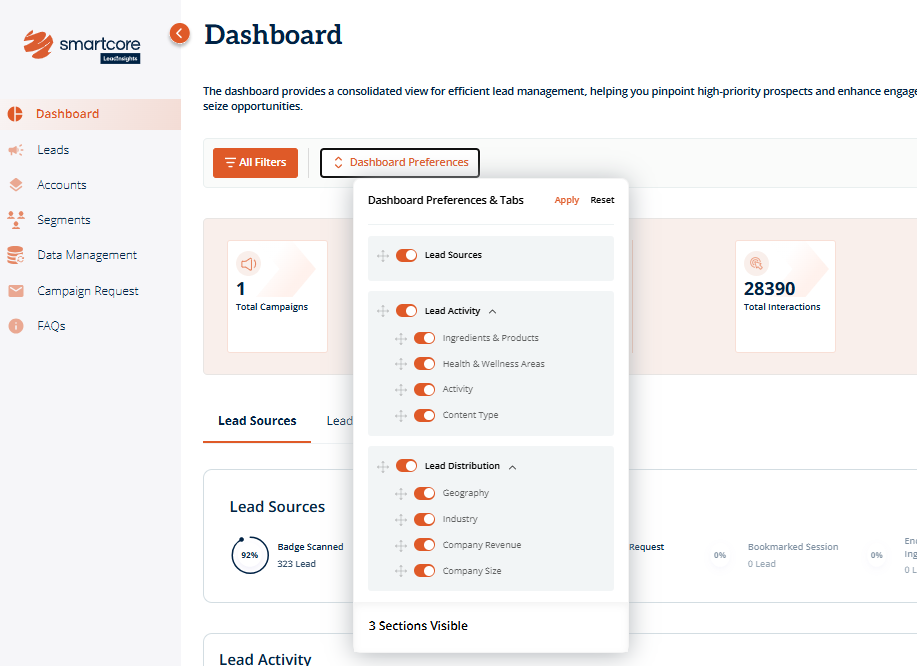
- Drag and drop to arrange the information in your order of preference
-
Hit "Apply" to access the updated Dashboard view
This helps streamline your view and ensures you're only seeing the insights most relevant to you.
Was this article helpful?
That’s Great!
Thank you for your feedback
Sorry! We couldn't be helpful
Thank you for your feedback
Feedback sent
We appreciate your effort and will try to fix the article