There are two different options to export lead data from the platform, each serving a unique purpose, depending on the data you need.
Option 1: Exporting Specific Lead Data
If you need a tailored export based on customised filters and selected data points:
1. Navigate to the ''Leads'' page
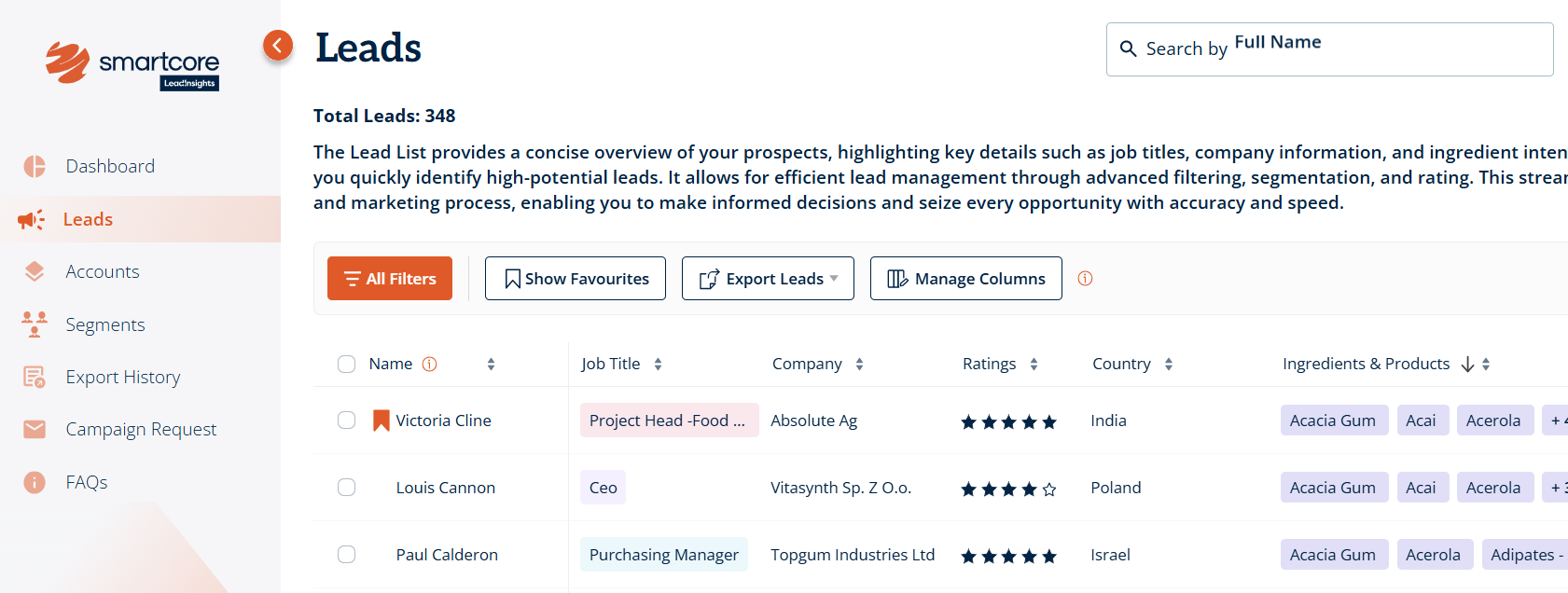
2. Click on ''Manage Columns'' to select or deselect the data fields you want to include in your export.
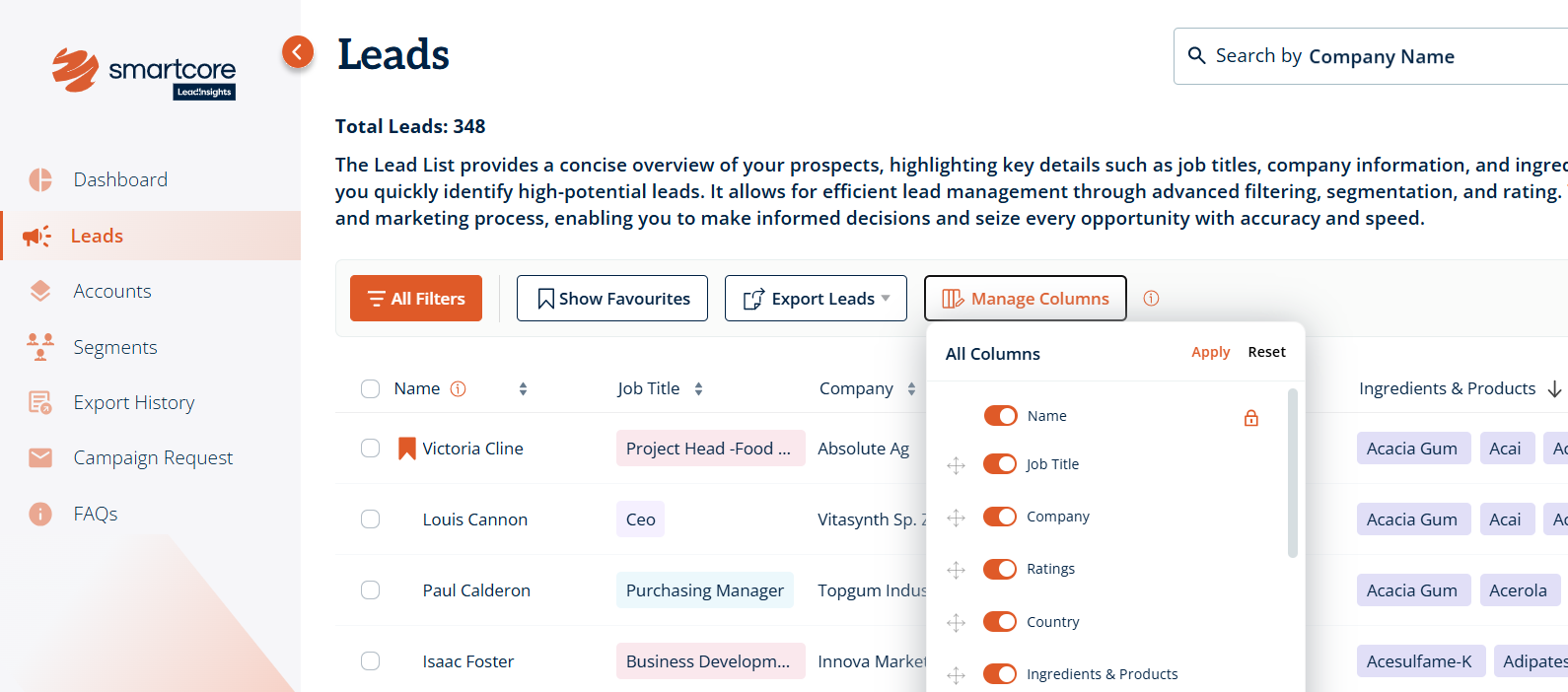
3. Arrange the columns in your preferred order by clicking and dragging.
4. Click ''Apply'' to save your selections. The export will only include the columns currently displayed.
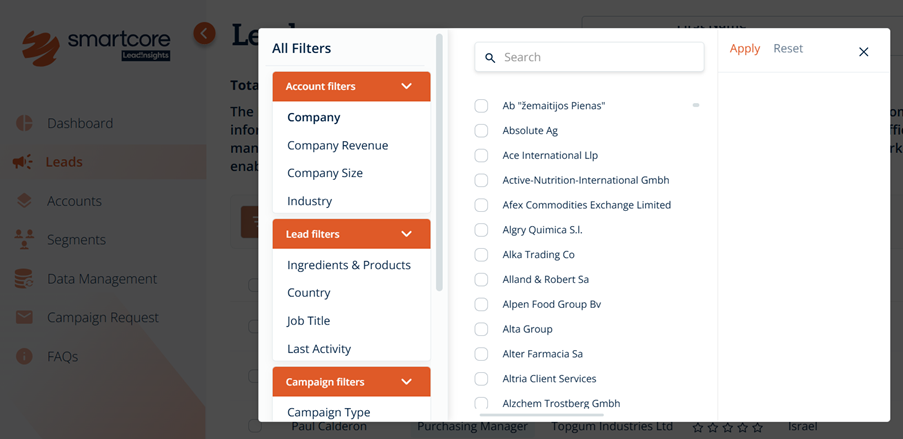
5. To refine your dataset further, click ''All Filters'' and select options such as Campaign Name, Country, and more.
6. Once filters and columns are customised, click ''Export Leads'' and select "Custom Export" - You receive a link with the data export to your email when the report is ready to be downloaded. Click on the link in your email to download The XLS file.
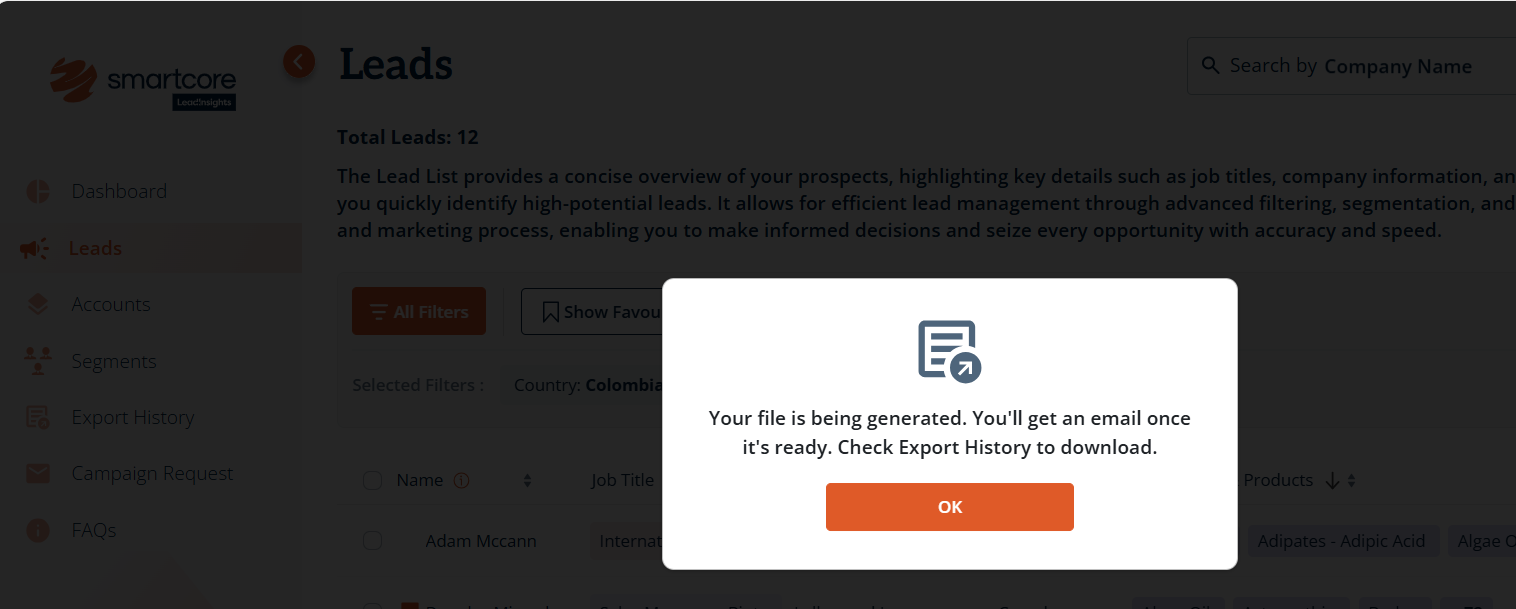
7. All the data downloads will be visible in the "Export History" tab, you can download the same export from "Export History" tab again at anytime within 7 days.
Option 2: Exporting All Available Lead Data
If you would like a comprehensive export of all information available on every lead:
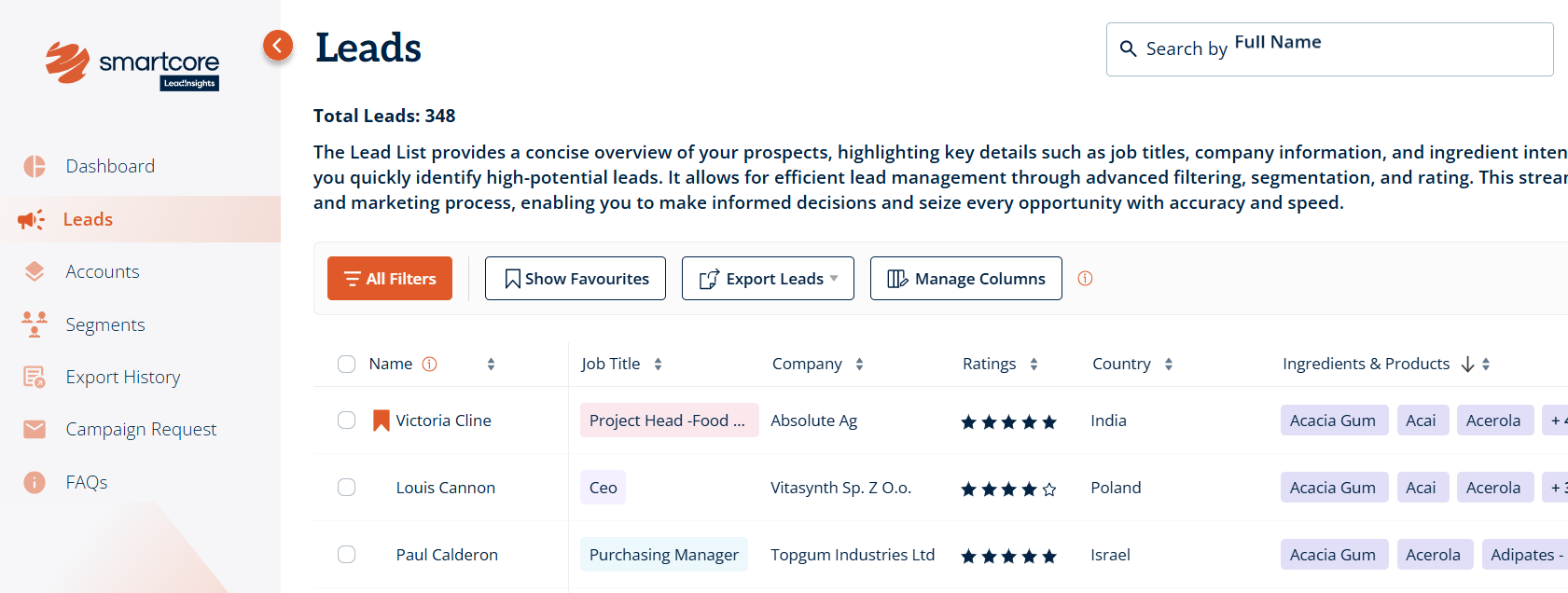
1. Head to the ''Leads'' page
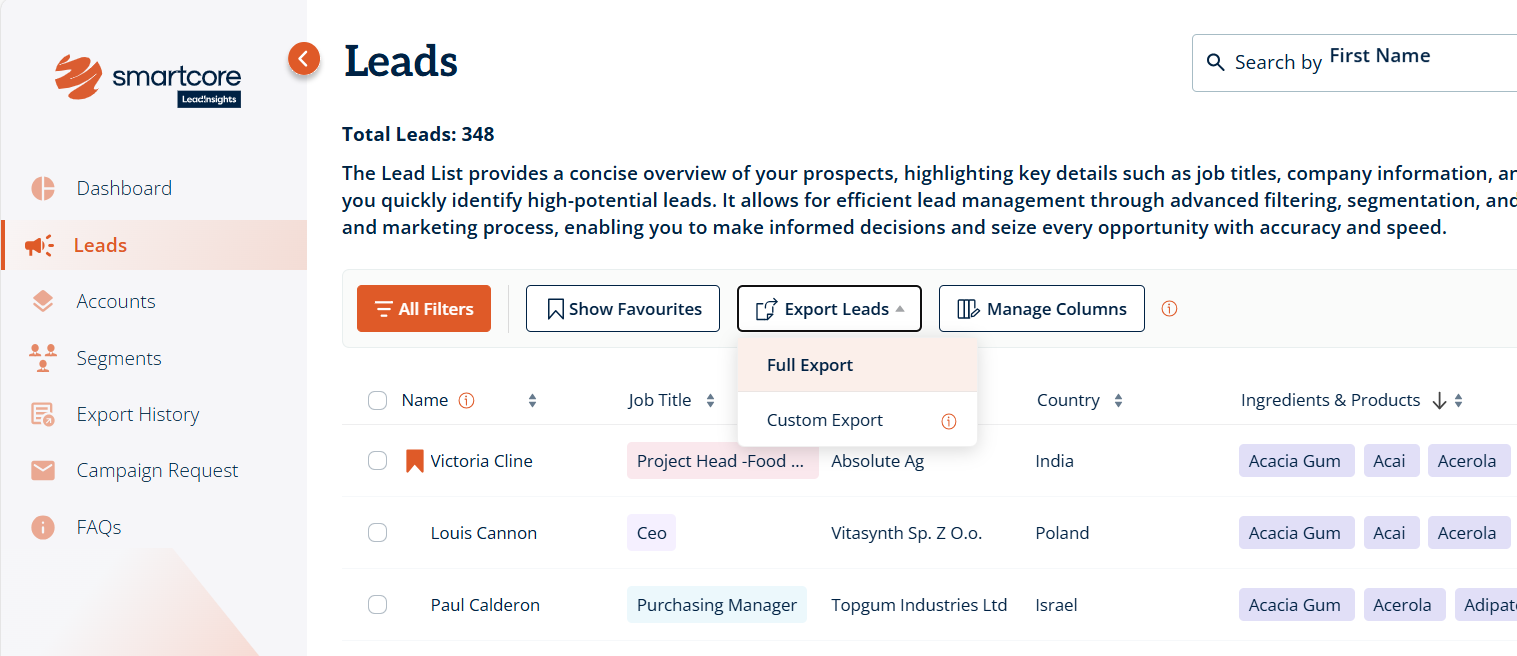
2. Click on “Export Leads” and selected "Full Export" - You receive a link with the data export to your email when the report is ready to be downloaded. Click on the link in your email to download The XLS file.
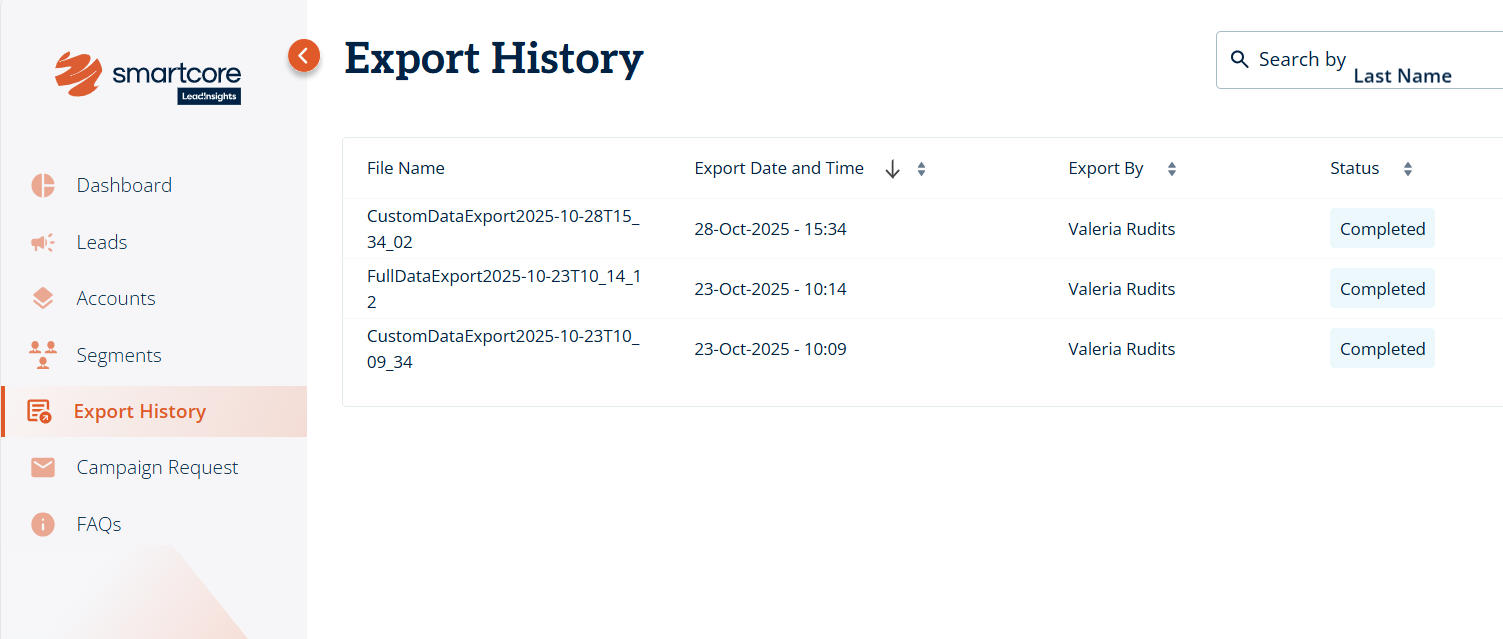
3. All the downloads will be visible in the "Export History" tab, you can download the same export from "Export History" tab again at anytime within 7 days .
Was this article helpful?
That’s Great!
Thank you for your feedback
Sorry! We couldn't be helpful
Thank you for your feedback
Feedback sent
We appreciate your effort and will try to fix the article